Undo/Redo Now Available in the Expression Editor
Edit your scan expressions with confidence. Made a mistake? Just undo it. Our expression editor now features undo and redo buttons and keyboard shortcuts.
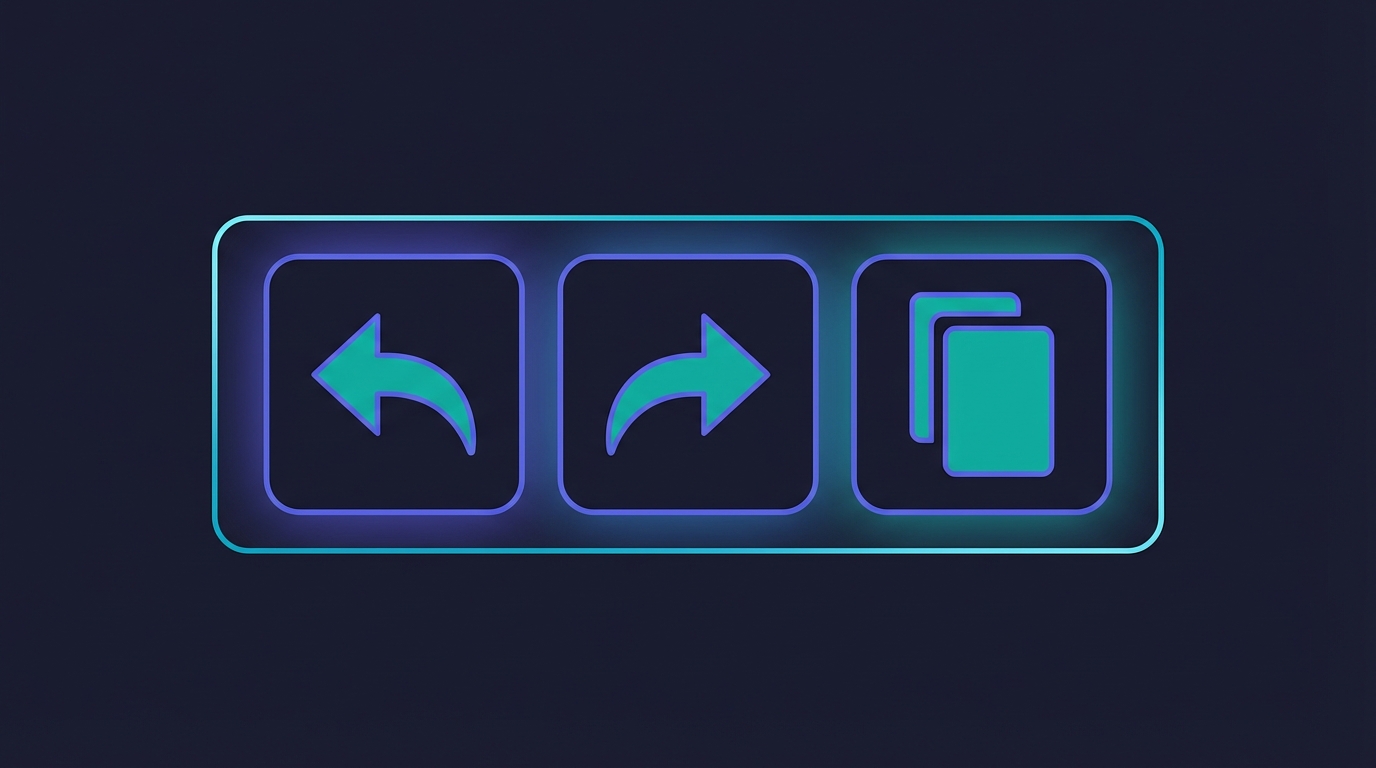
Editor Toolbar
Look for the faint icons in the top-right corner of the expression editor:
Undo (↶) - Revert your last change
Redo (↷) - Restore what you just undid
Copy (📋) - Copy the entire expression to clipboard
The buttons are subtle by design—visible when you need them, out of the way when you don't. They become more visible on hover.
Keyboard Shortcuts
Undo: Ctrl+Z (or Cmd+Z on Mac)
Redo: Ctrl+Shift+Z or Ctrl+Y (Cmd+Shift+Z on Mac)
Or just click the toolbar buttons.
How It Works
The editor automatically saves your state as you type. Rapid keystrokes are grouped together so you're not undoing one character at a time.
Your cursor position is preserved across undo/redo operations, so you can keep editing right where you left off.
The history stores up to 100 states, giving you plenty of room to experiment and backtrack.
Buttons are disabled when there's nothing to undo/redo, so you always know what's available.
Why This Matters
When you're building complex scans with multiple conditions, it's easy to break something while experimenting. Now you can try different approaches without fear of losing your working expression.
Paste in a new condition, realize it's wrong, and instantly restore your previous state. No more manually retyping expressions from memory.
The copy button makes it easy to share your expressions or save them elsewhere.
Try it on your own scans. 14-day free trial, no card.
Start free trial